

- Go to your Business Profile. Learn how to find your profile.
- Click Menu
 Business Profile settings Managers.
 - At the top left, click Add .
- Enter our email address – [email protected]
- Under “Access,” choose Owner or Manager.
- Click Invite.

 Business Profile settings
  .
.We will first need you to send over your Google ads account ID:
Sign in to your Google Ads account.
Click the help icon  in the top right corner.
Find ‘Customer ID’ at the bottom of the menu.
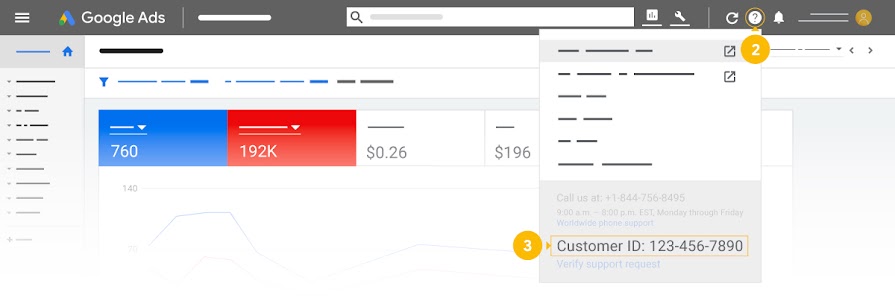
Once you have this, send it over to us via Email, WhatsApp or the messaging area of your TwinScroll account – we will shortly thereafter send an access request
Users with administrative access to the invited account, or access to a linked manager account that has administrative ownership of that account, can accept the request. You can find, accept, or decline linking requests using the following steps:
- Sign in to your Google Ads manager account.
- Click the Tools and settings icon , then under ‘Setup’, click Access and security.
- Select the Managers tab. Under ‘Link request’, you’ll find a list of manager accounts that have requested to link to your account.
- Under ‘Actions’, click Accept.